Short, step-by-step help with pictures. Pick your role to see what matters to you, or search.
1. Set up your cafe
You can be selling in an afternoon. The 30-day Pro trial only starts with your first real bill, so setting up is free.
Open OrdenZ, choose New cafe, and enter your cafe name, your name, email and a password.
Go to Menu & settings and fill in your cafe name, address, GSTIN, FSSAI number, UPI ID and GST rate. These print on every bill.
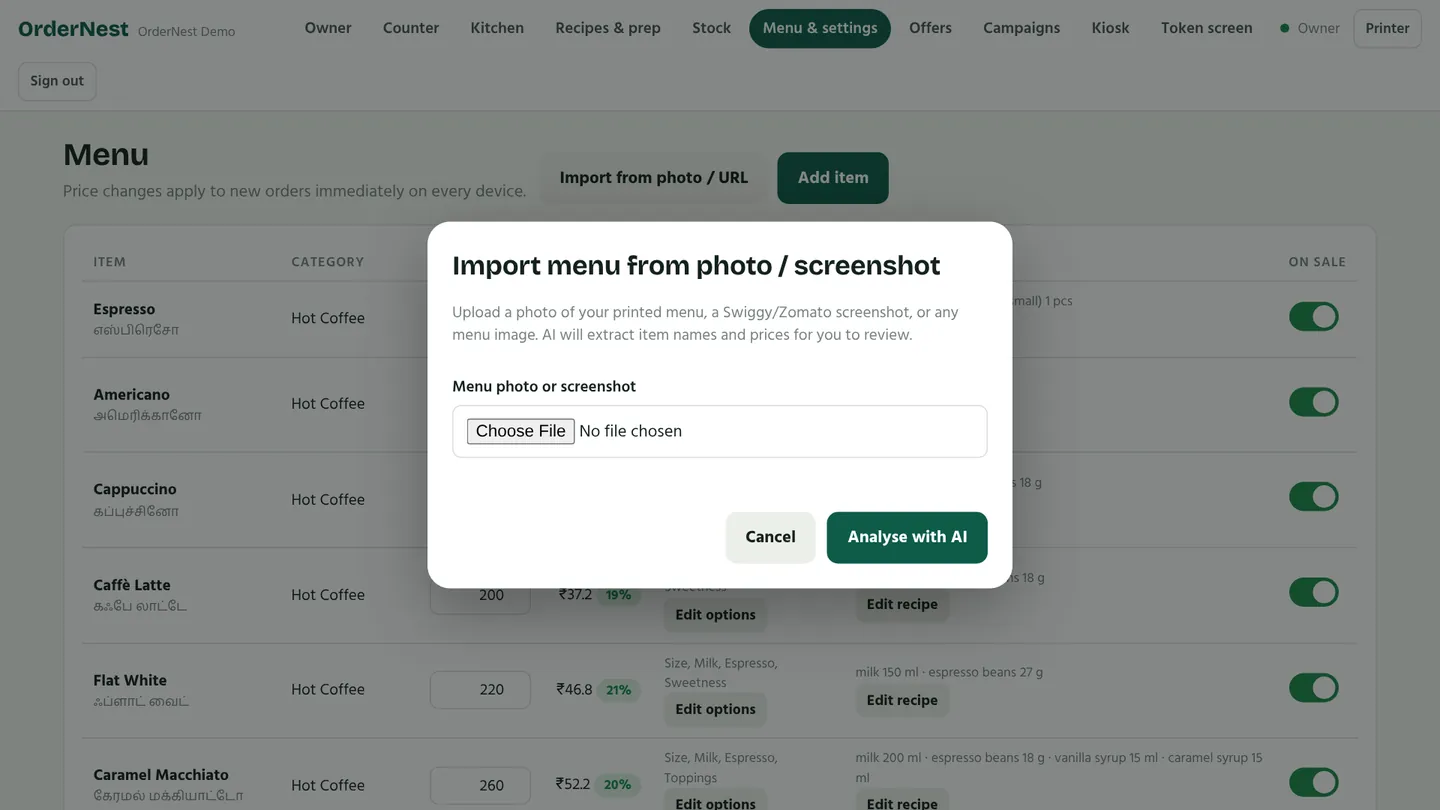
Add your menu: type items one by one, upload the Excel template, or take a photo of your printed menu and let AI read it (Pro).
Add item photos from the Menu page. They're cropped and shrunk on your phone, so they load fast on the kiosk.
AI menu import: check the items it found, then save.
Practice first, with sample customers
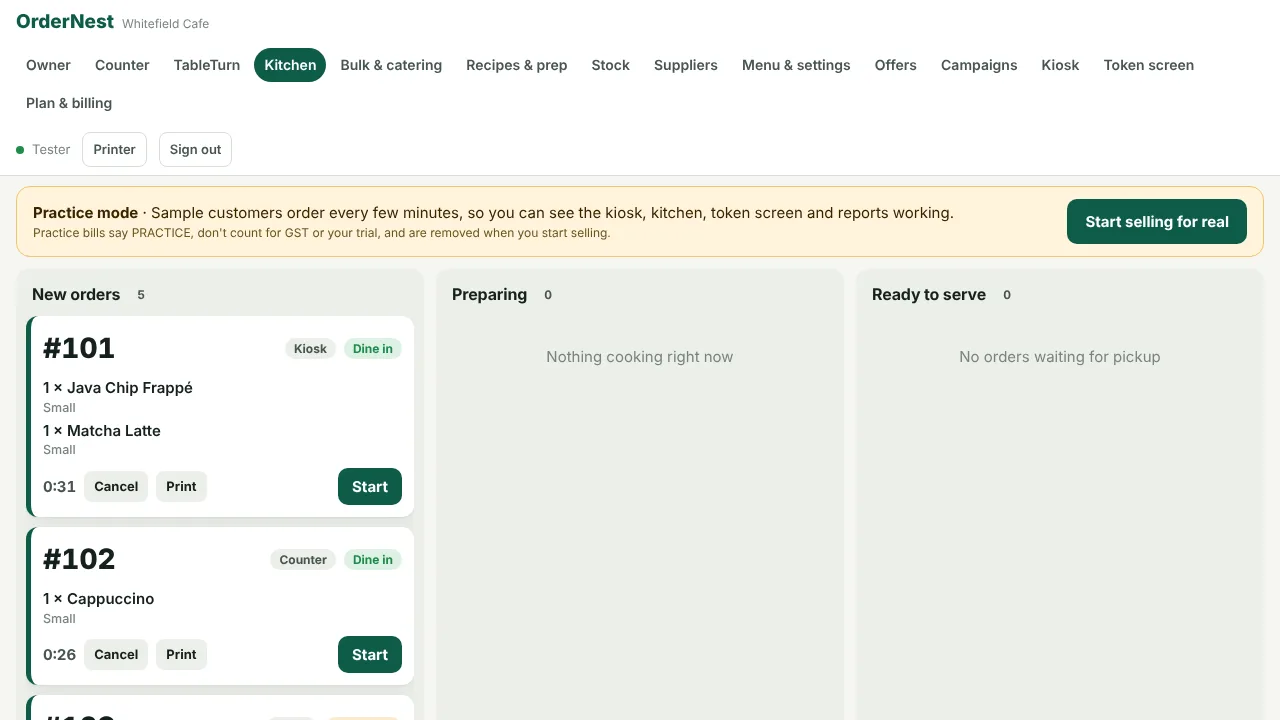
Want to see OrdenZ busy before your first real customer, or train your team? Ask us to turn on practice mode for your cafe. A sample customer then orders about every 5 minutes for a week, on the kiosk or at the counter, so you can watch the kitchen screen, token TV, stock and reports working. If your menu is still empty, we add a sample menu so there's something to order.
Practice bills print PRACTICE BILL · NOT A TAX INVOICE. They don't count for GST or the Free plan's daily limit, and they don't start your trial.
Orders you place yourself in practice mode are practice bills too, so try anything.
When you're ready, tap Start selling for real on the yellow banner. Every practice bill is removed, the stock goes back, and your first real bill is bill 1. You can remove the sample menu at the same time.
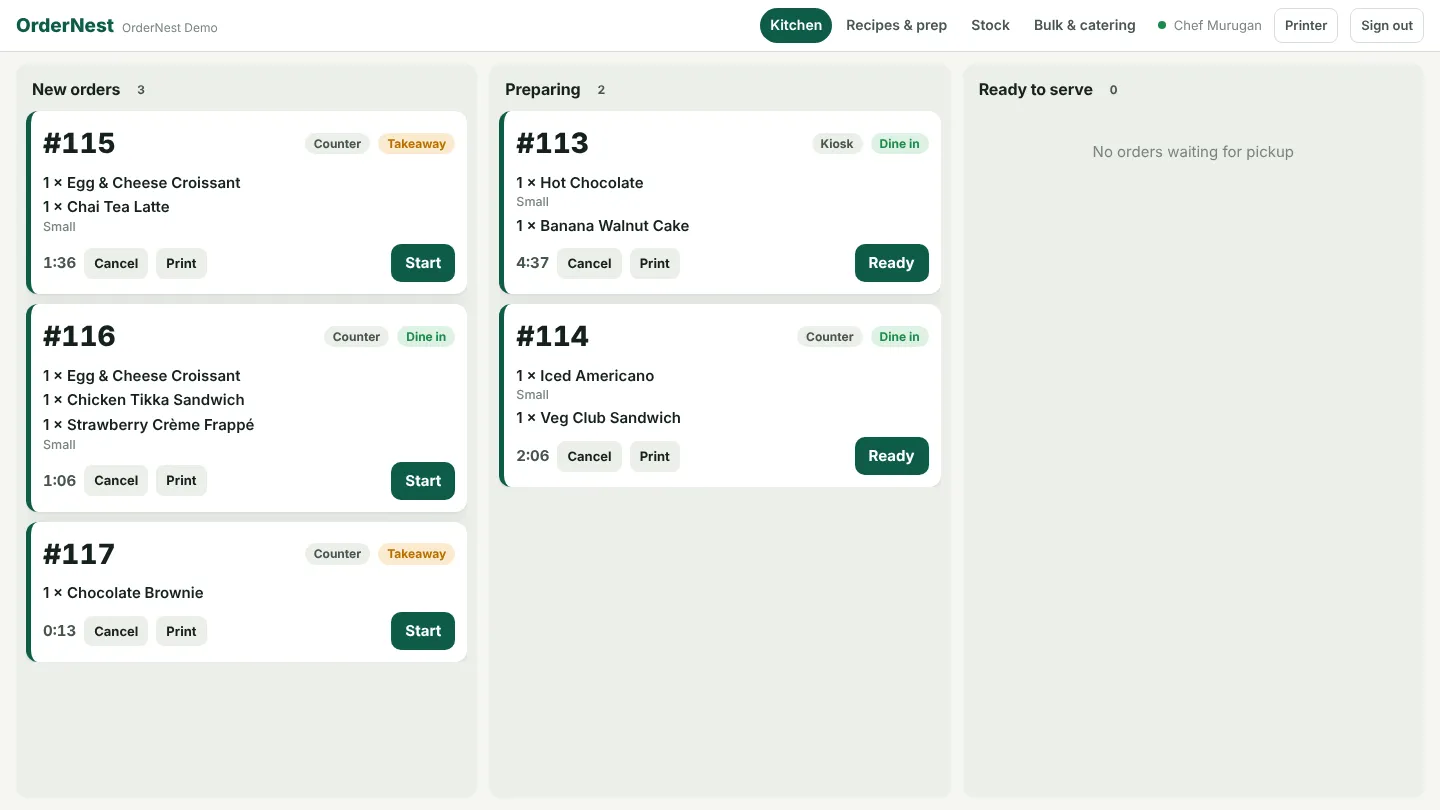
Practice mode: sample orders arriving on the kitchen screen.
2. Your country: India or Malaysia
When you sign up, choose your Country. It sets your currency, taxes, bill format, phone numbers and kiosk languages. You can change it in Menu & settings until your first real bill.
India: add your GSTIN, FSSAI number and GST rate. Menu prices include GST, and bills show CGST and SGST.
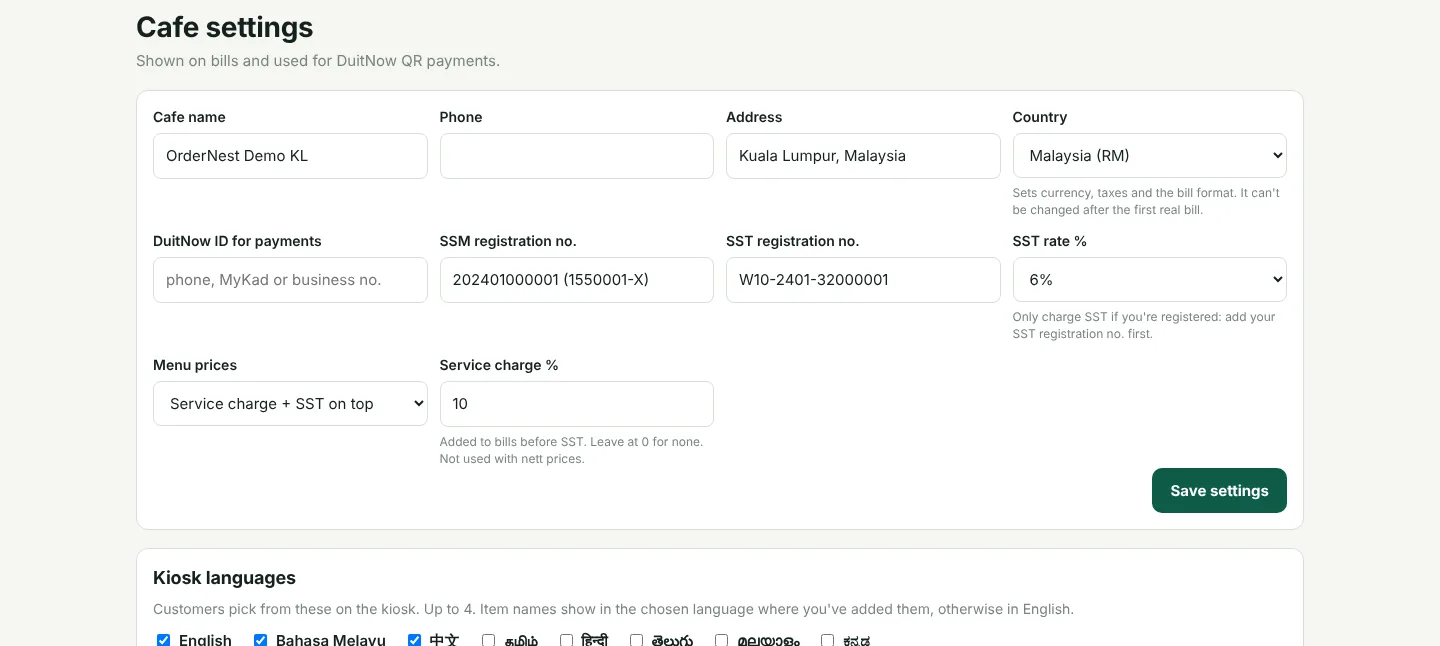
Malaysia: add your SSM registration no.. If you're SST-registered, add your SST registration no. and set SST rate to 6%; otherwise leave it at 0%.
Choose Menu prices: Service charge + SST on top (set the Service charge %, usually 10%), or Nett (all included). Tap Save settings.
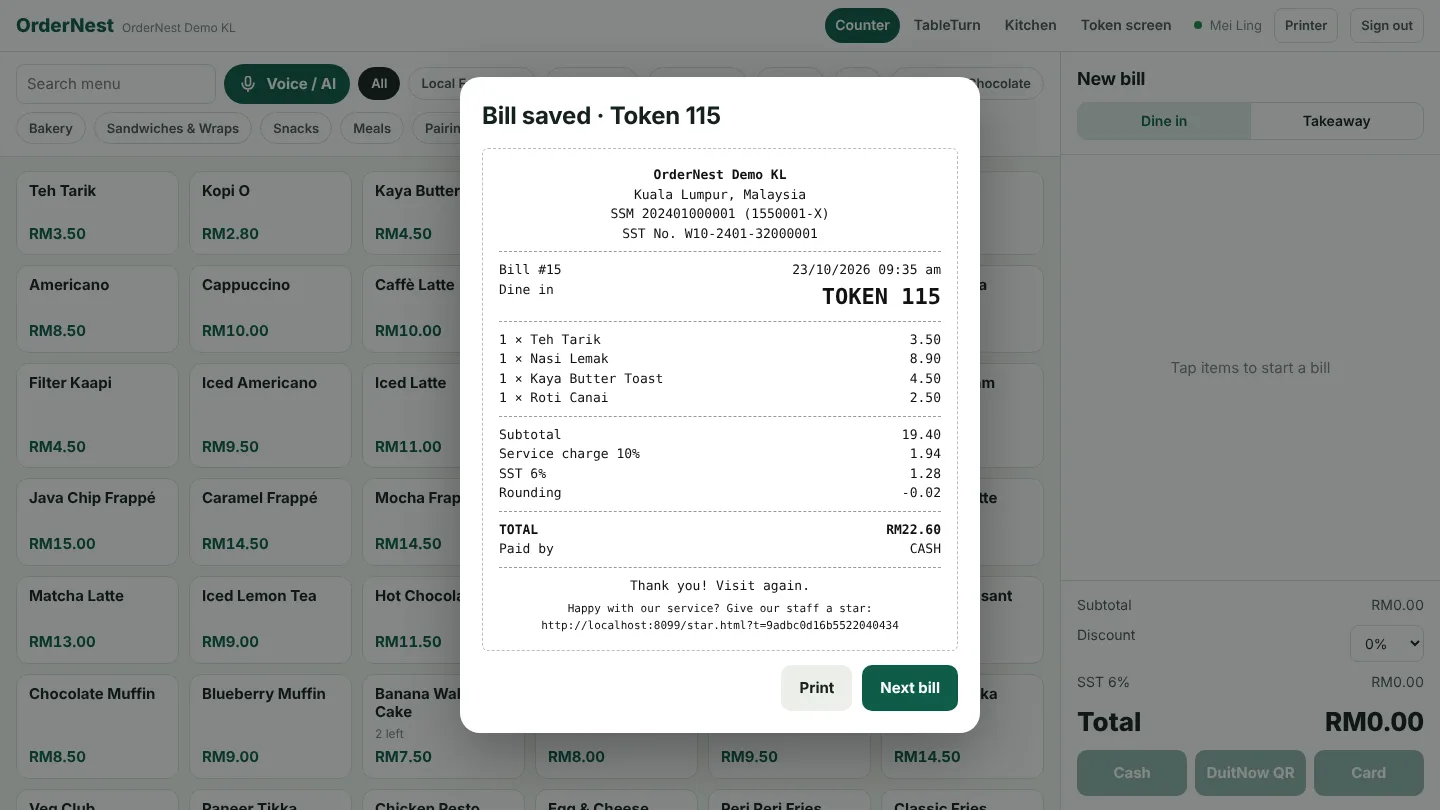
Cash bills are rounded to the nearest 5 sen; card and DuitNow QR stay exact. The bill shows the service charge, SST and rounding.
3. Connect the kiosk, TV and printer
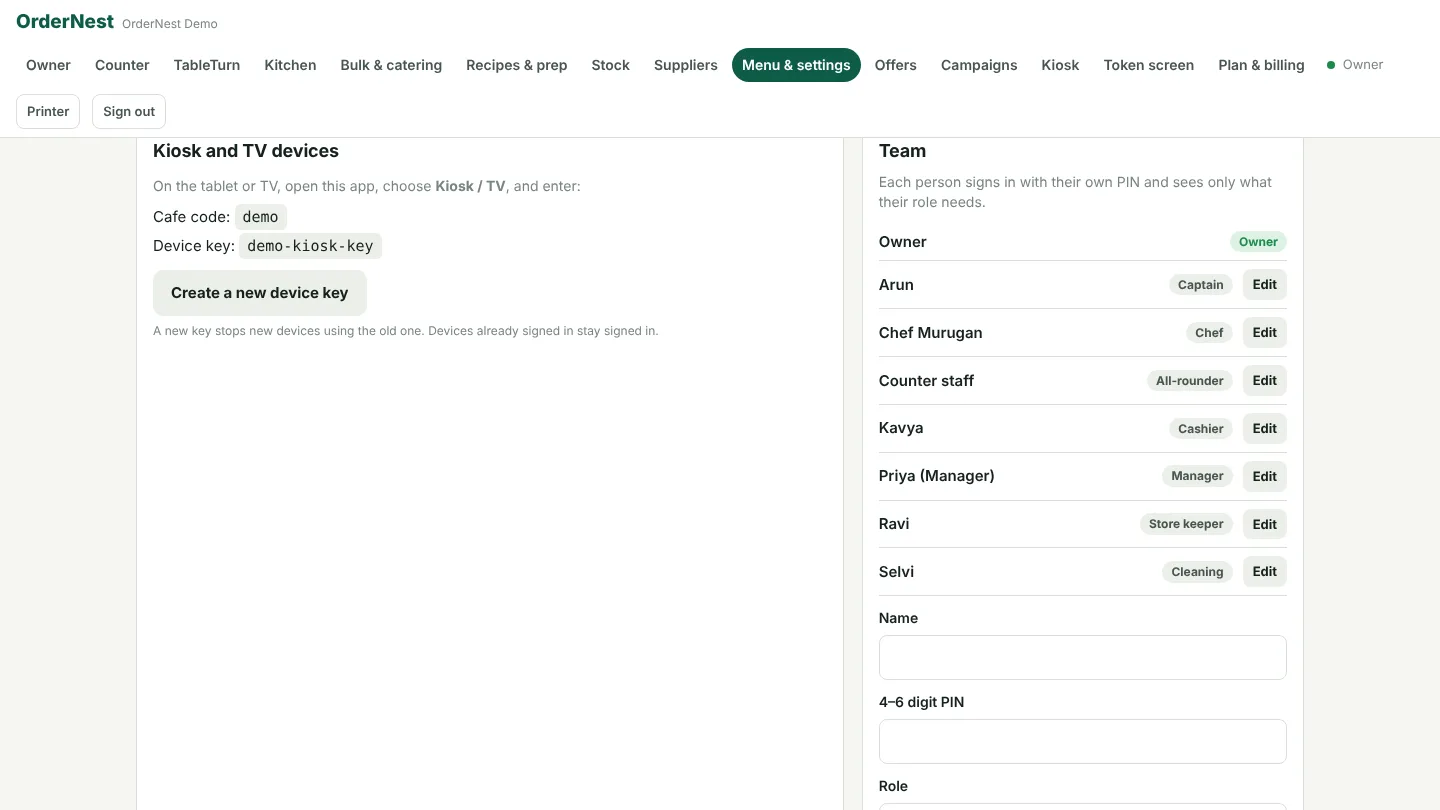
In Menu & settings, find Kiosk and TV devices. It shows your cafe code and device key.
On the kiosk tablet or TV, open OrdenZ, choose Kiosk / TV, enter the cafe code and device key, and pick Self-order kiosk or Token screen (TV).
Tap Printer on the counter or kitchen screen to connect a Bluetooth, Wi-Fi or USB thermal printer (58 mm or 80 mm).
If a tablet is lost, tap Create a new device key. Tablets already signed in stay signed in; you can lock them from the owner screen.
4. Add your team and give everyone a role
Each person signs in with their own PIN and sees only the screens their job needs.
Go to Menu & settings → Team.
Type the name, a 4–6 digit PIN, choose the Role and tap Add team member.
On the tablet, they choose Staff PIN and type their PIN.
To change a role or a PIN, or stop someone signing in, tap Edit next to their name. It works within seconds, even on a tablet that's already signed in.
Role
Sees
Manager
Everything day to day: reports, menu and prices, stock, suppliers, offers, tables and the team. Not the plan, billing, or other managers.
Captain
Tables, bookings, the waiting list, taking orders, the kitchen and the token TV.
Chef
Kitchen screen, recipes and batch cooking, stock, bulk orders to cook.
Cashier
Counter billing, payments, loyalty, tables and the token TV.
Store keeper
Stock, supplier invoices, wastage, recipes and bulk orders.
Cleaning
The table floor and their own clean-up jobs.
All-rounder
Counter, tables, kitchen, stock and bulk orders (what staff had before roles).
Only the owner can make or change managers.
5. How customers order on the kiosk
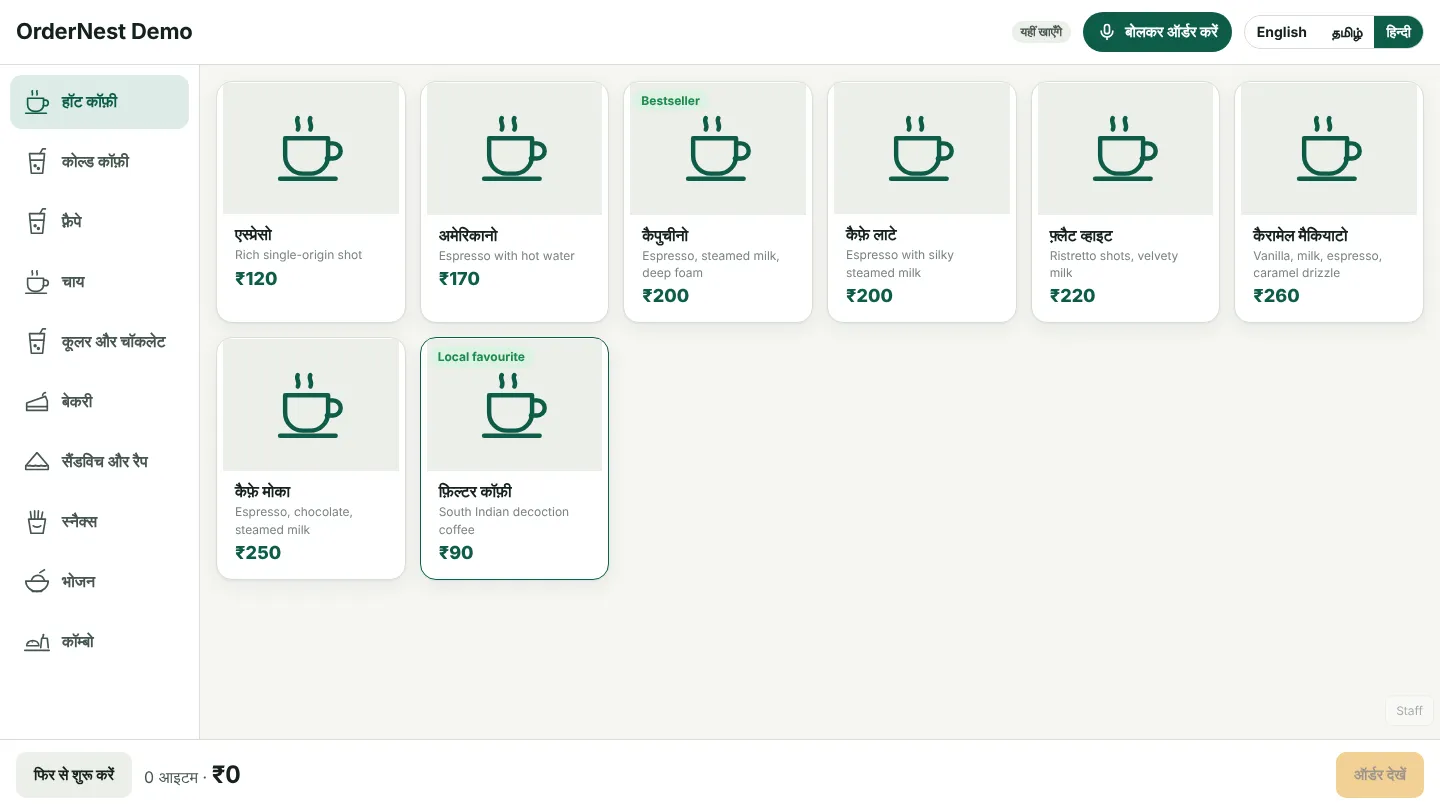
The customer taps the screen, chooses their language at the top, and picks Eat here or Take away.
They tap items, choose size, milk and extras, or tap Order by voice and just say it.
They pay with the UPI QR for the exact amount. The kiosk turns green by itself when the payment arrives; nobody has to check a phone.
They get a token number, and the TV calls it when the order is ready.
The kiosk in Hindi. Item names show in English wherever you haven't added the translation yet.
6. Kiosk languages and menu names
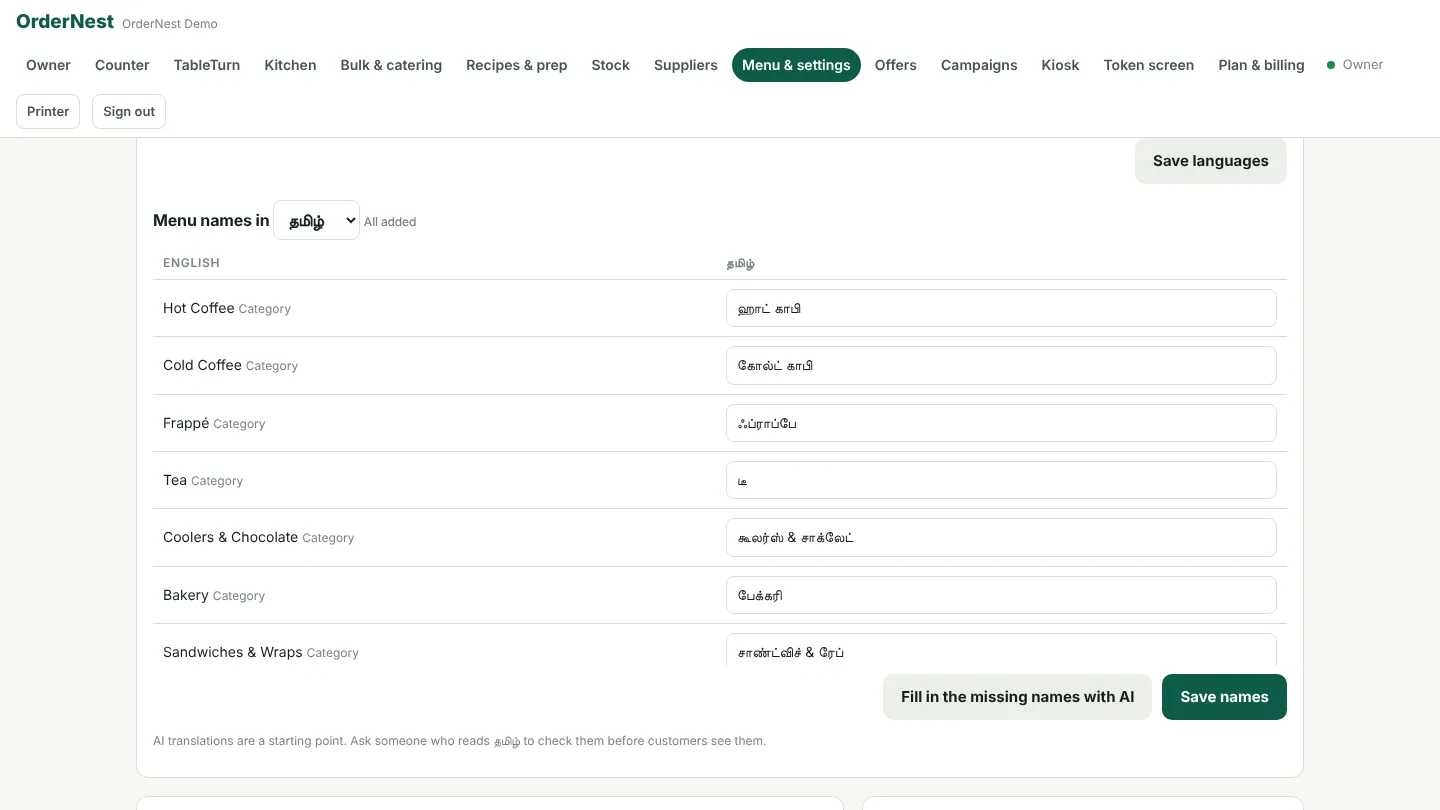
In Menu & settings → Kiosk languages, tick up to four languages and tap Save languages.
Under Menu names in, choose a language and type each item's name, then tap Save names.
On Pro, tap Fill in the missing names with AI to translate everything at once. Ask someone who reads the language to check them.
7. Bill at the counter
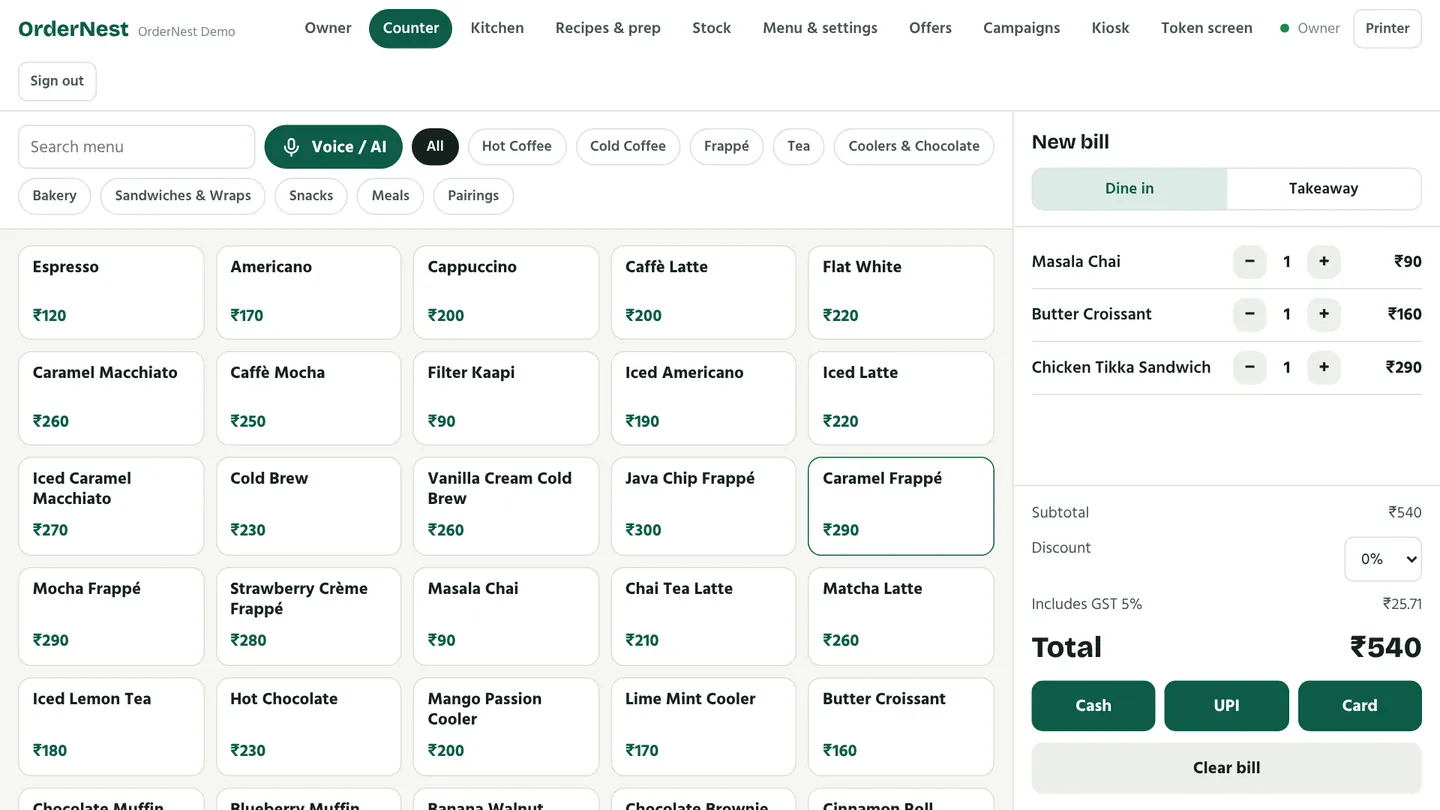
Open Counter, tap the items (choose options if asked), and add a discount if you need one.
Choose cash, UPI or card. The GST receipt with CGST and SGST prints straight away. In Malaysia the buttons say DuitNow QR, and the bill shows the service charge, SST and cash rounding.
For kiosk orders paid in cash, find the token and collect the money here.
Internet down? Keep billing. Bills are saved on the tablet with an offline number and sync by themselves, never twice.
8. The kitchen screen and token TV
New orders appear on Kitchen at once. Tap Start, then Ready.
Orders waiting too long change colour, so nothing is forgotten.
When you tap Ready, the token moves to "Ready" on the TV with a chime.
The chef only sees the kitchen, recipes, stock and bulk orders.
9. Tables, bookings and clean-ups (TableTurn)
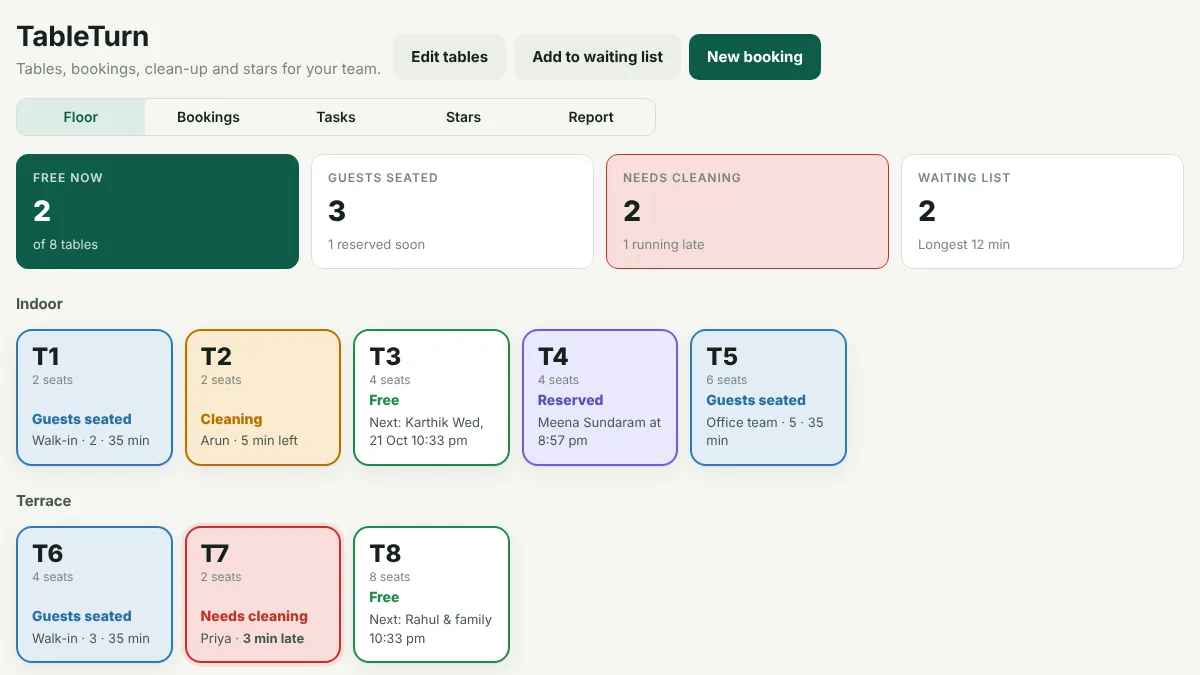
Open TableTurn to see every table: free, reserved, seated or needs cleaning.
Tap New booking for a reservation; OrdenZ suggests the right-size table and never double-books. Walk-ins go on Add to waiting list.
When guests leave, tap the table. The clean-up job goes to the cleaning staff automatically.
The cleaner takes a photo of the clean table to finish; the table is free again. The owner or manager can check the photo or send it back.
Customers can give staff a star from the QR code on their bill.
10. Stock, recipes and wastage
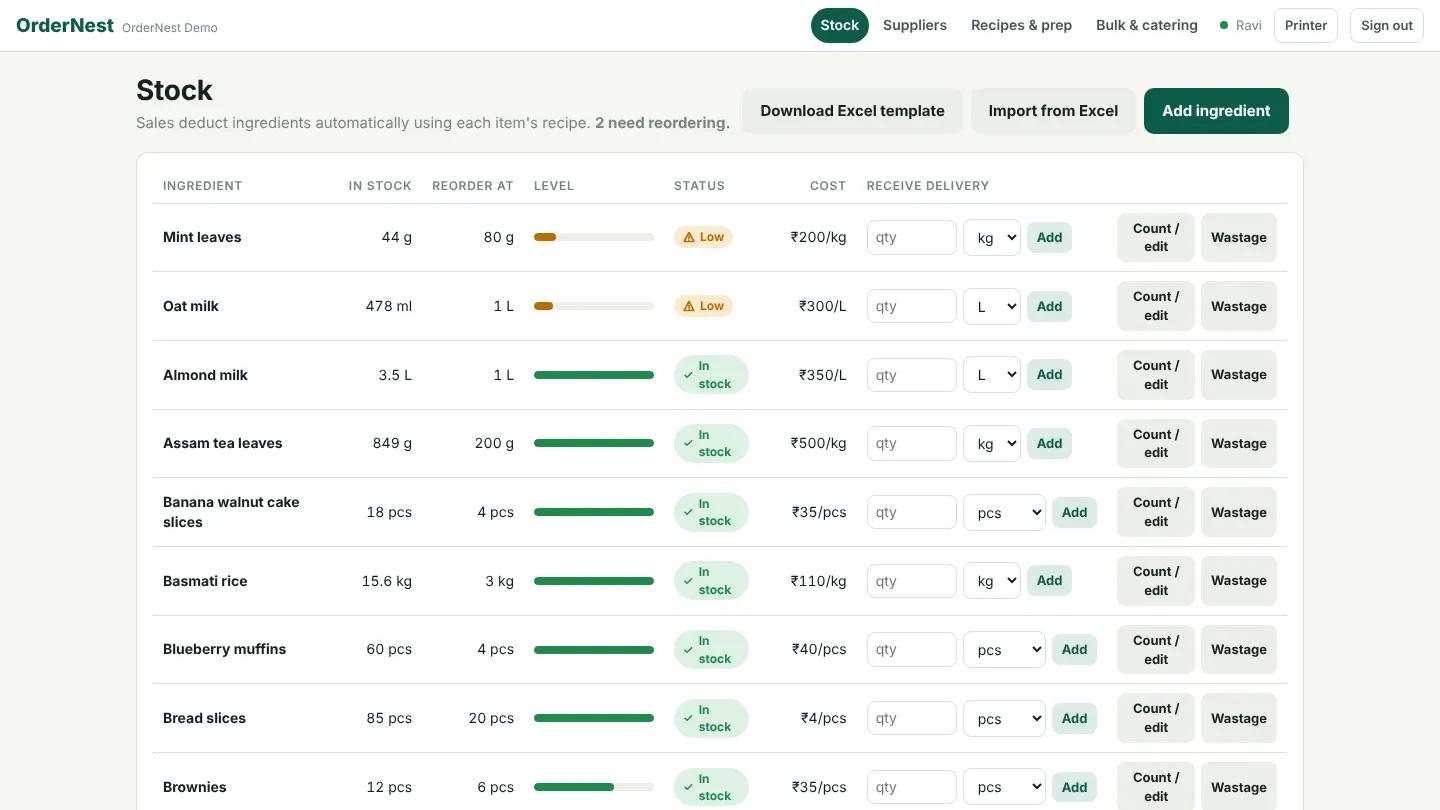
Every sale takes its ingredients out of stock using the item's recipe. Low items show an alert; sold-out items hide from the kiosk.
In Recipes & prep, write a batch recipe once and tap Cook batch; the raw ingredients come off stock.
On Stock, tap Count / edit after a stock count.
Thrown something away? Tap Wastage, enter how much and why. Its cost shows on the Suppliers page.
11. Supplier invoices
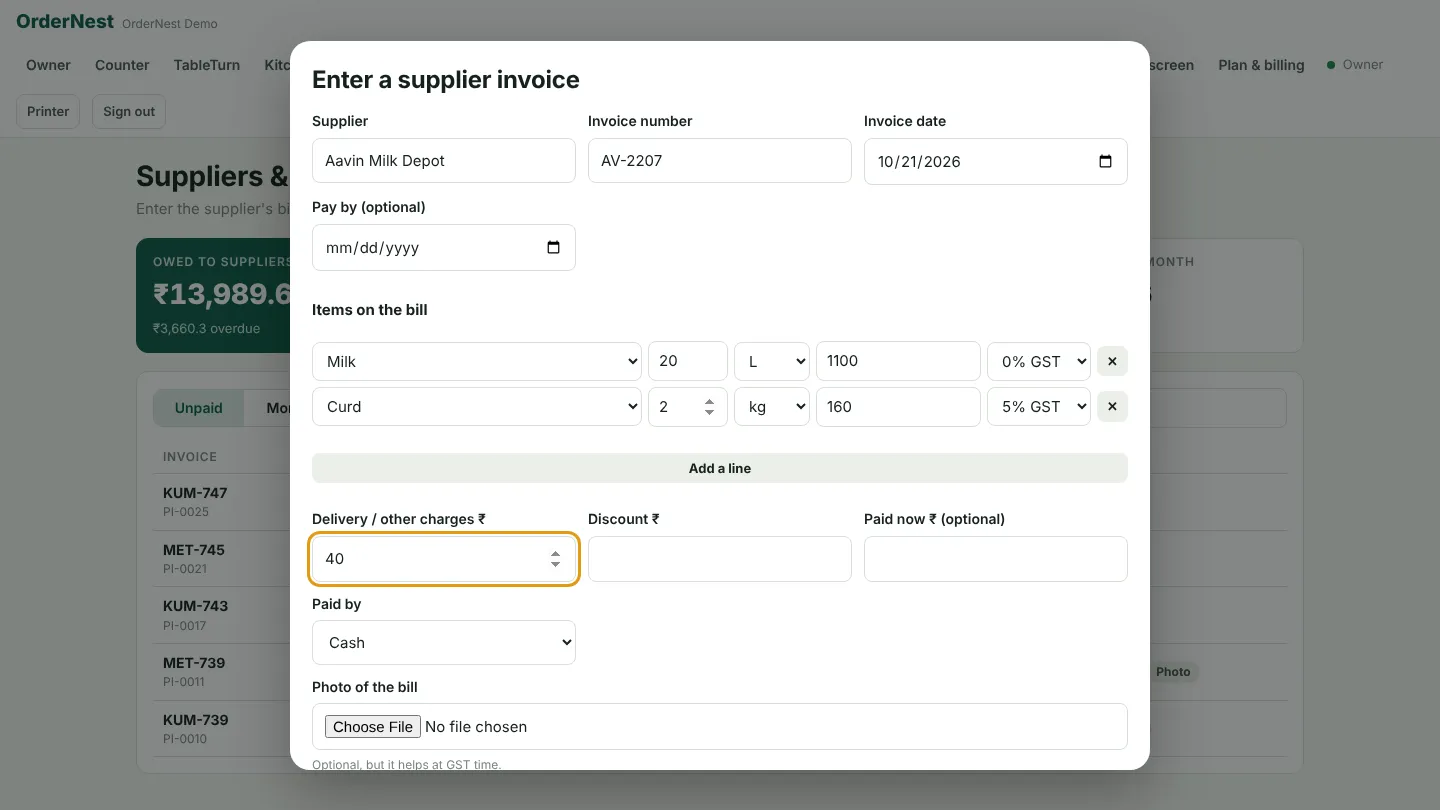
When a delivery comes, open Suppliers and tap Enter an invoice.
Type or choose the supplier, the invoice number and date, and the pay-by date if they gave you credit.
Add each item: quantity, cost before GST and the GST rate. Take a photo of the bill.
Tap Save and add to stock. The stock goes up and recipe costs update.
The owner or manager taps an invoice and Record payment when it's paid. The top of the page shows what you owe, what's overdue, and the GST you paid this month.
The same invoice number from the same supplier can't be entered twice.
12. Reports and the activity log
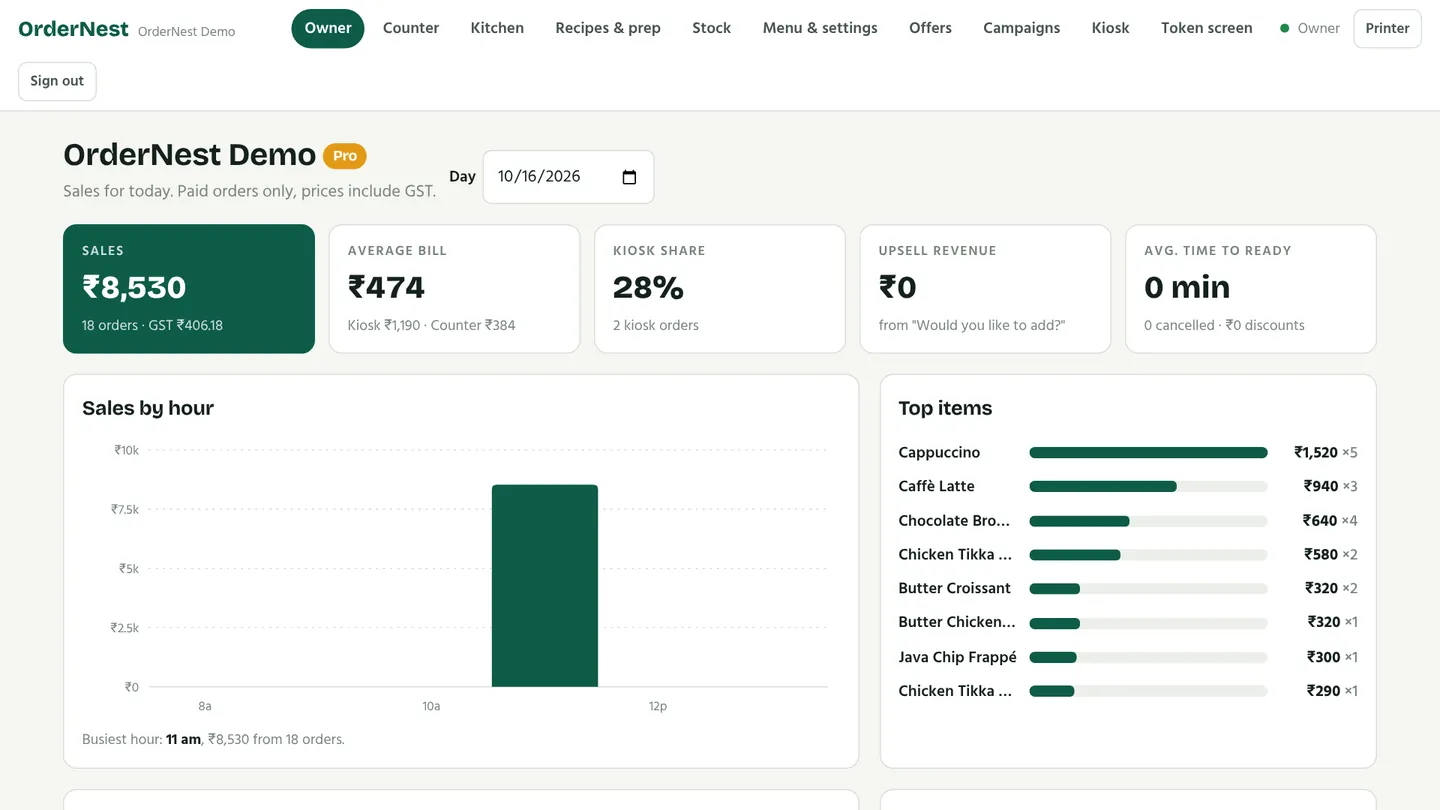
Owner shows today's sales, average bill, kiosk share, upsell revenue, sales by hour and top items. Pick a date to look back.
The daily WhatsApp summary is ready to send at closing time.
Activity shows who changed prices, stock, refunds, settings and the team, and when.
Devices lists your tablets; reload or lock one from here.
13. Bulk and catering orders
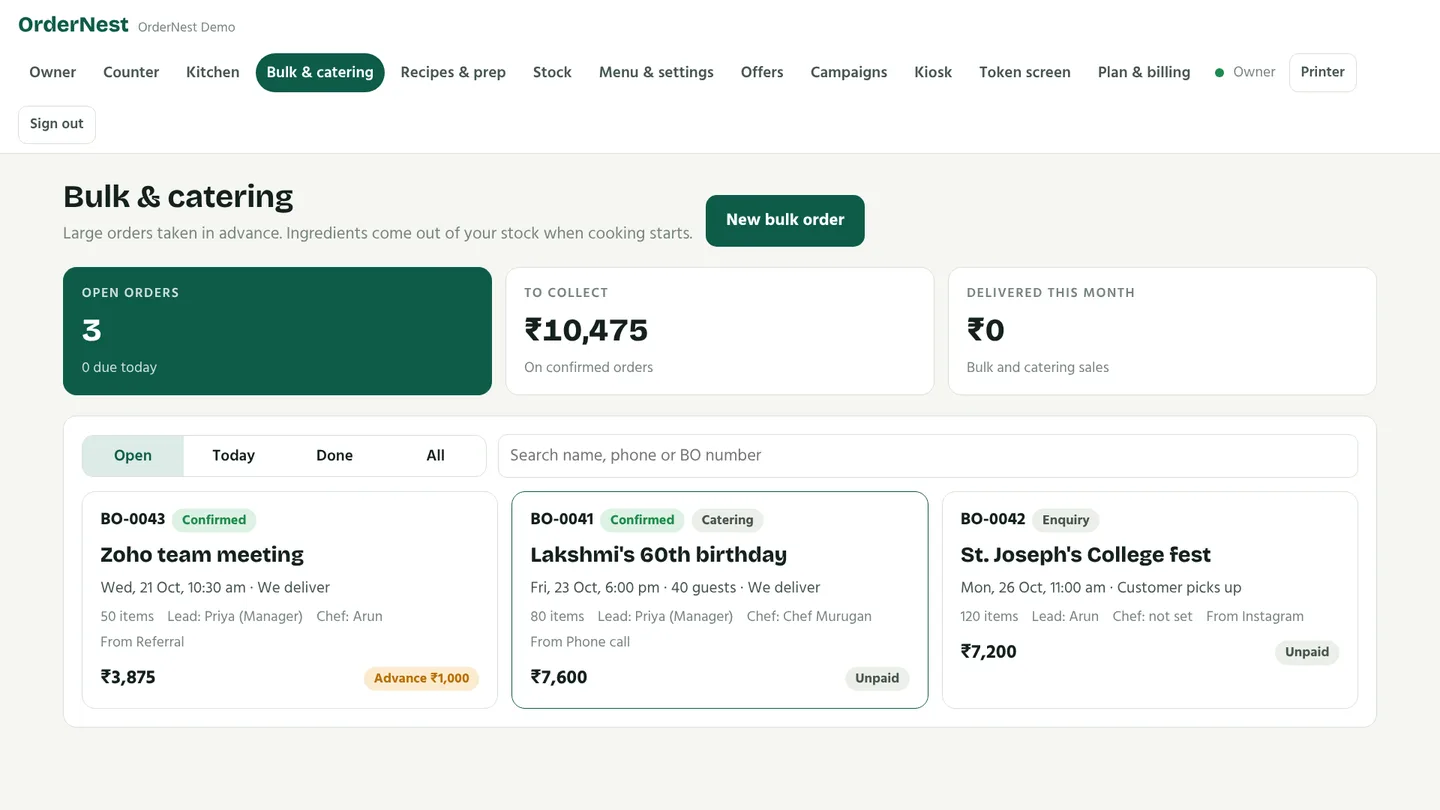
Open Bulk & catering and tap New bulk order: who ordered, where from, the event date, guests and venue.
Choose who is responsible and which chef cooks. OrdenZ shows what stock to buy in time.
Record the advance; move the order to Confirmed, Cooking, Ready and Delivered; collect the balance.
14. Loyalty, offers and WhatsApp
Customers join loyalty with just a mobile number and earn points on every bill.
In Offers, create codes with a minimum order, a limit and an end date.
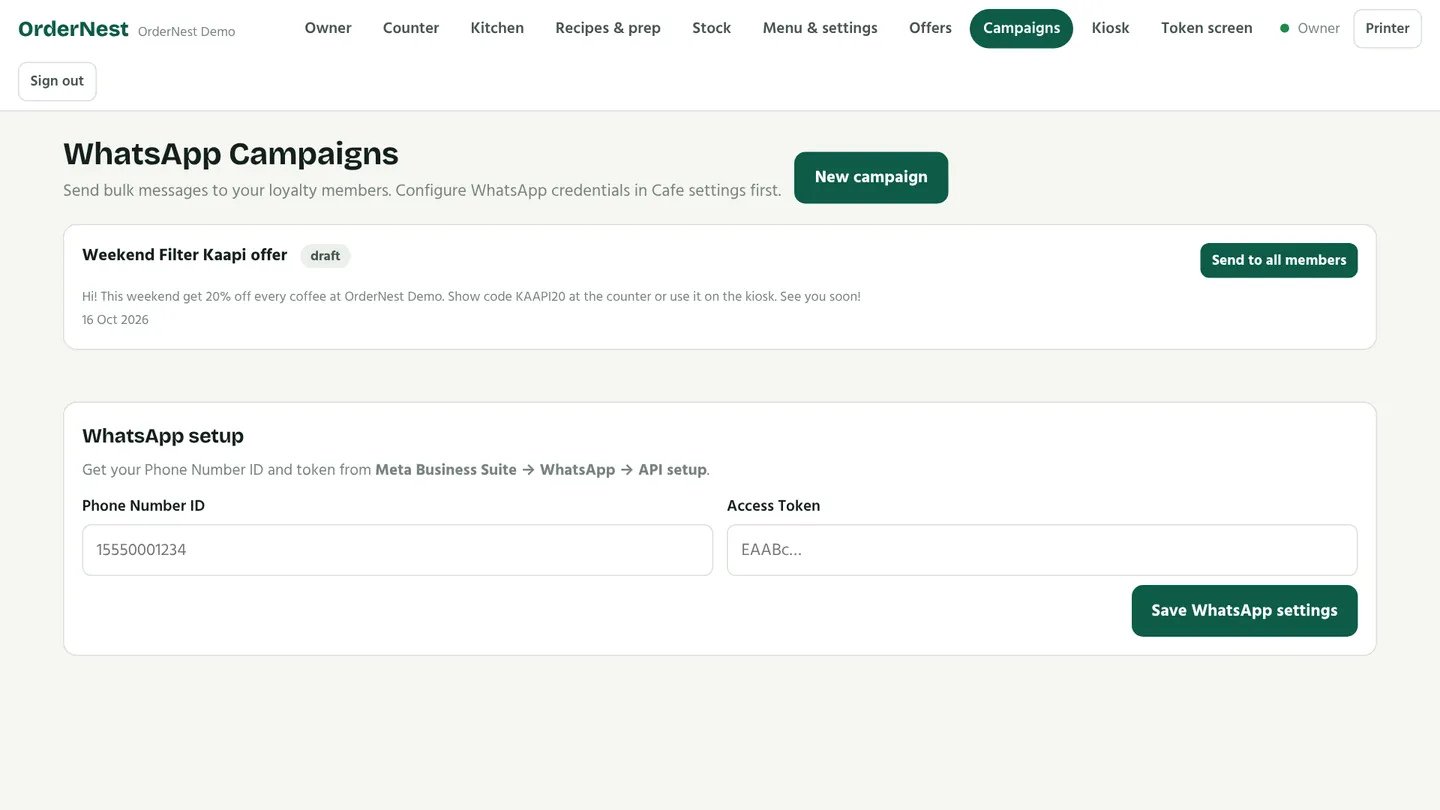
In Campaigns, write a message and send it to all loyalty members on WhatsApp (connect your WhatsApp Business account first).
15. Plans and billing
Open Plan & billing to see your trial, compare Free, Starter and Pro, and pay monthly or yearly (two months free).
Have a promo or referral code? Add it here. Share your own referral link on WhatsApp for a free month.
 OrdenZ